Student Success Platform

What is UTA’s Student Success Platform (SSP)?

Welcome the suite of tools – Supporting Success Across UTA!

Civitas Image

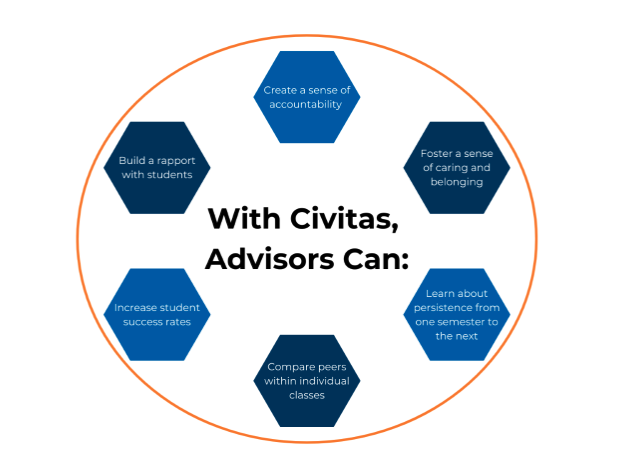
Civitas is UTA’s all-in-one Student Success platform designed to help students, staff, and faculty stay informed, organized, and connected. Whether you're assisting students plan their academic journey, advising students, or coordinating support across departments, Civitas gives you the tools to make smarter decisions and work together more effectively. It’s all about making success easier for everyone in the Maverick community.

The SUITE of Tools for Advisors include:

MavInspire is a student success and advising platform designed to enhance student outcomes through data-informed decision-making and coordinated support.

Key Features of Civitas MavInspire:

  • Predictive Analytics for Advising: Inspire integrates predictive analytics to identify students who may be at risk of failing or graduating. This allows advisors to proactively intervene with targeted support strategies.
  • Holistic Student Profiles: The platform aggregates data from various sources, including academic performance, engagement, and financial information, to create comprehensive student profiles. This enables advisors to have a complete view of each student's situation.
  • Integrated Case Management: Inspire offers tools for case management, allowing advisors to track interactions, set reminders, and coordinate with other support services across the institution.
  • Collaboration Across Departments: The platform facilitates collaboration among different departments, such as academic advising, student engagement, and career services, ensuring that all stakeholders are aligned in supporting student success.
  • Actionable Insights: Inspire provides actionable insights and recommendations based on data analysis, helping advisors make informed decisions and prioritize interventions effectively.

MavPlanner and MavScheduler are comprehensive solutions designed to enhance the degree planning process and scheduling experience for students, promoting academic success and operational efficiency.

Key Features:

  • Personalized Schedule Creation: In MavScheduler, students can input their personal commitments, such as work hours, commute times, and extracurricular activities, to generate customized class schedules that fit their individual needs.
  • Automated Schedule Generation: The tool automatically generates optimal class schedules based on students' academic plans and personal preferences, reducing conflicts and enhancing the registration experience.
  • Integration with Academic Plans: MavPlanner integrates with students' academic plans, ensuring that the generated schedules align with their degree requirements and progress.

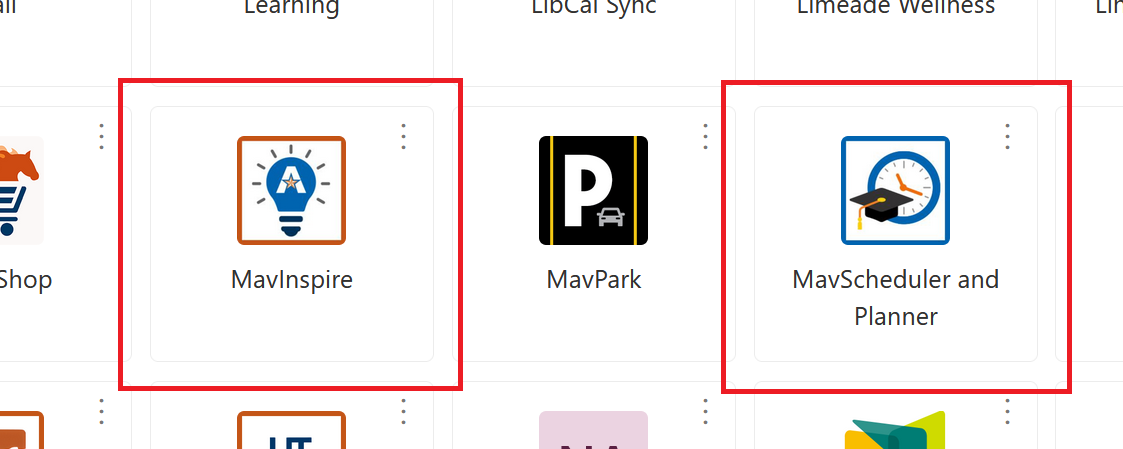
Accessing the tools is as easy as logging into MyApps and selecting the correct tile.

MavInspire and MavScheduler tile

Training Opportunities

The following training opportunities are currently scheduled for targeted trainees. Click the registration button to sign up or consult the knowledge base for MavPlanner & MavScheduler guidance.

Division of Student Success
College of Architecture, Planning and Public Affairs
UAAC – Advising Leads (Invitation only)
Honors College
College of Business
College of Nursing and Health Innovation
School of Social Work
College of Engineering
SSP Tech Champions (Invitation only)
College of Education
Register for training
MavPlanner & MavScheduler

Knowledge Base Article: Access the step-by-step guide to navigate these updates smoothly.

Where to direct inquiries

Technical Issues (e.g., SSO login errors or redirection problems): helpdeskcomm@uta.edu

Operational Requests & Feedback (e.g., requesting user access, adding reason codes, or additional courses): civitas@uta.edu

FAQs

MavPlanner will improve class scheduling
Assist communication between you and your academic advisor to:

  • Avoid unadvised course combinations
  • Avoid issues with transferring credits
  • Keep your degree plan up to date

Improve degree completion by helping you with the following:

  • Track degree requirements
  • Avoid taking the wrong courses
MavScheduler allows students to explore, narrow, and save the perfect class schedule for them out of all the possible combinations. Once you plan courses for the term, MavScheduler will auto-generate class schedule suggestions based on the classes you want to take next semester.
Yes! The Scheduler button is present on active terms with open registration. Clicking the Schedule button pre-fills the scheduling page with the courses that you already planned out for this term.
Each change to your plan, including becoming primary and being shared with a new person, is recorded in the Change Log tab. The log captures who changed what on the current plan, and when. Keep in mind that a copied plan only tracks changes and comments from the moment you copied it.
The Requirements tab shows your progress toward completion of the degree you are targeting; you can hide completed items to focus only on what you have left to do. You can also hide planned requirements to spot what’s missing from your plan.
For unmet requirements (empty circle icon), the Degree Requirements page lists the courses that could satisfy the audit. Expand the Courses Available drop-down list for a given requirement to see the choices. If you have a Primary Plan, the Select Term drop-list lets you add a course directly to a specific term.

After working hard to organize the best course plan for the next term, you can enjoy the simplicity of pushing your planned courses into the Scheduler with one click so that you can complete registration faster. The Scheduler button is only present on active terms with open registration. Clicking the Schedule button pre-fills the scheduling page with the courses that you already planned out for this term. 

In MavScheduler, the + Add Course button opens the page where you add your course list manually (looking up each one) via the By Subject tab. When you locate each course (first by Subject, then by Course), you select the + Add Course button, which enters it into your Courses list at right. 

You can add courses by using any other filters provided. These appear as additional tabs, such as  

Search By Subject 

By Instructor 

By CRN or Class # refers to the “course registration number” for a specific section, if you know that information. 

Search by Section Attribute 

Search By Course Attribute – allows you to search for courses by Core requirements 

At any point you can click Generate Schedules, just to see how many schedules fit your current choices and filters. If it’s too many, use more filtering options to narrow the set. 
Life happens, plans change, and sections fill up, so Planner makes it easy for you to drag courses into other terms as your plan evolves. 

Your cursor will change to guide you: 

  • When the cursor is a hand, you can drag the item to another location. This is the same as opening the course details and choosing a new Term from the drop-down list. 
  • To get rid of an item, click it to open its details and select Delete
  • When the cursor is a blinking vertical bar, you can start typing to trigger a lookup. 

As your plan evolves, dragging courses to another term is easy.

Your cursor will change to guide you:

  • To get rid of an item, click it to open its details and select Delete.
  • When the cursor is a hand, you can drag the item to another location. This is the same as opening the course details and choosing a new Term from the drop-down list.
  • When the cursor is a blinking vertical bar, you can start typing to trigger a lookup.